
Flipkart Order Tracking for Sellers: Every Status Explained (2026)
Quick answer
Sellers track every Flipkart order inside Seller Hub: new orders land in the Orders section, you pack and hand the parcel to the pickup partner, and the order moves through shipped to delivered with a tracking ID on the label. Returned parcels come back as return orders, and your customer follows the same parcel from the My Orders page on Flipkart.

Once orders start coming in, tracking them is the job that never stops: which orders need acceptance, which are packed, which are on the way, and which are coming back. This guide walks through exactly where Flipkart order tracking lives for a seller, inside Seller Hub. New to the dashboard? Keep our Flipkart Seller Hub guide open alongside.
Where Tracking Lives: Seller Hub
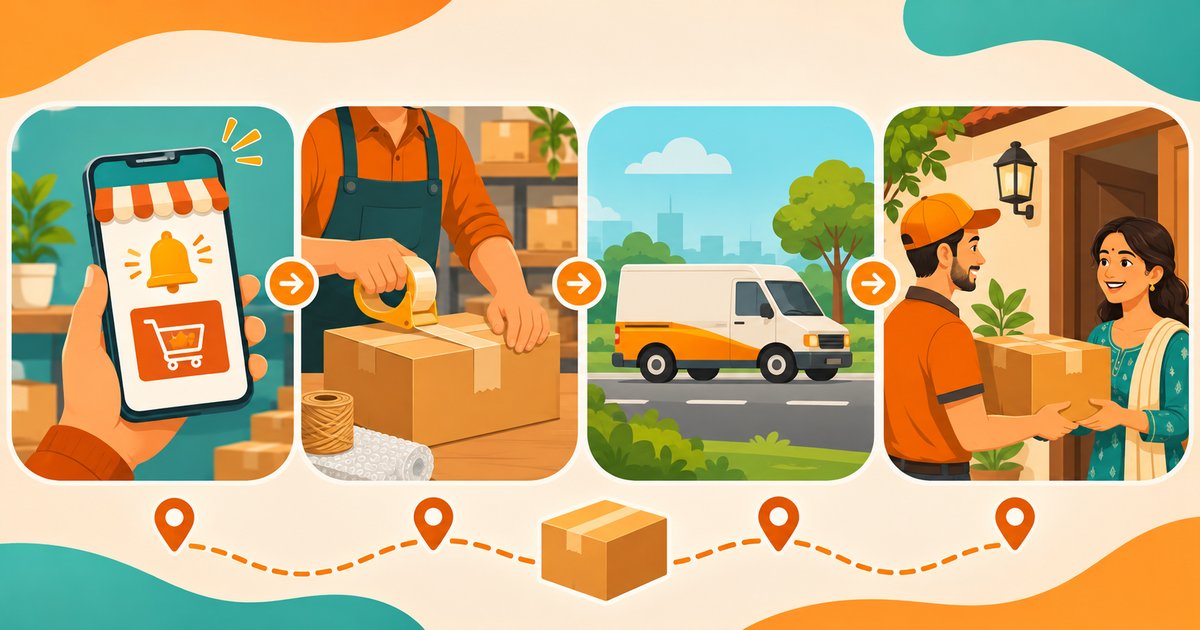
Everything starts in the Orders section of Seller Hub at seller.flipkart.com - on the website or in the Seller Hub app. The flow in plain steps:
- Accept and packNew orders appear in the Orders section of Seller Hub. Accept the order, pack the product and keep it ready for pickup.
- Print the label and hand overDownload and print the shipping label - it carries the tracking ID for the parcel - and hand the packed order to the pickup partner.
- Follow to deliveryThe order moves through shipped to delivered inside Seller Hub, and anything coming back shows up as a return order so nothing goes missing.
What Each Status Means
The Orders section groups your orders by where they are in the journey. Here is what each state is telling you:
| Status | What it means |
|---|---|
| New order | A fresh order waiting on you. Check the Orders section of Seller Hub daily so no order sits unaccepted. |
| Ready to ship | You have packed the order and printed the label. The parcel waits for the pickup partner to collect it. |
| Shipped / in transit | Flipkart’s logistics network has the parcel and it is moving to the customer. The tracking ID on the label follows the journey. |
| Delivered | The customer has the product. Delivered orders stay visible in Seller Hub, and the payment cycle for that order starts at dispatch. |
| Return | Anything coming back to you - customer returns and undelivered parcels - shows as a return order so you can match the product against the original sale. |
The Tracking ID on Your Label
When you download an order's shipping label from Seller Hub, the tracking ID for the parcel is printed on it. That ID is what follows the parcel through Flipkart's logistics network from pickup to delivery, so keep the label PDF until the order is delivered. Need a clean sticker from that PDF? Use the free Flipkart label crop tool, and our label printing guide covers the full print setup.
Returns: Parcels Coming Back
Not every parcel reaches the customer. Customer returns and undelivered parcels come back to you as return orders inside Seller Hub, so you can match each returned product against the original sale. A returned product is stock you can relist - but it also changes what the order pays you, which our Flipkart payment cycle guide explains line by line.
How Your Customer Tracks the Order
Buyers do not see your Seller Hub. They track their order on Flipkart itself - in the app or on flipkart.com under My Orders, where each order shows its live delivery status. If a customer messages you asking where the parcel is, pointing them to My Orders is the fastest answer, and the tracking ID on your label shows you the same journey from the seller side.
Free Tools for Flipkart Sellers
Tracking itself stays inside Seller Hub, but the work around it - labels, pricing and listings - is where hours go. SnapSeller is an independent toolkit, not made by or affiliated with Flipkart, and every feature is free for all sellers:
- Flipkart Seller Hub guide. A full tour of Seller Hub: listings, orders, Payments Overview, insights and ads.
- Flipkart shipping label print guide. Print labels and manifests correctly so tracking IDs scan first time.
- Flipkart payment cycle guide. When the money for a delivered order reaches your bank, and what gets deducted.
- free Flipkart label crop tool. Trim shipping label PDFs to a 4x6 label for your printer, right in your browser.
- Flipkart profit calculator. Check your real profit after fees and shipping before you set a price.
Browse all free seller tools.
Frequently asked questions
How do I track my Flipkart orders as a seller?
Log in to Seller Hub at seller.flipkart.com and open the Orders section. New orders wait for acceptance, packed orders wait for pickup, and each order then moves through shipped to delivered. Anything coming back appears as a return order.
Where do new Flipkart orders appear?
New orders appear in the Orders section of Seller Hub. Check it daily, accept the order, pack the product and keep it ready for the pickup partner.
Where is the tracking ID for a Flipkart order?
The tracking ID is printed on the shipping label you download from Seller Hub for the order. It identifies the parcel through the logistics network from pickup to delivery.
How does my customer track their Flipkart order?
Customers track their orders on Flipkart itself - in the app or on flipkart.com under My Orders, where each order shows its live delivery status. You do not need to send tracking links yourself.
What happens if a Flipkart order cannot be delivered?
Undelivered parcels and customer returns come back to you as return orders, visible in Seller Hub so you can match the returned product against the original sale and its settlement line.
When do I get paid for a delivered Flipkart order?
Flipkart releases payment after the product is dispatched, and the money can reach your registered bank account in as fast as 3 days depending on your seller tier. See our Flipkart payment cycle guide for the full schedule and deductions.