
Meesho Label Crop: Free 4x6 Thermal Printer Guide (2026)
Quick answer
Download the label PDF from Orders → Ready to Ship in the Meesho supplier panel, open SnapSeller’s free Meesho label crop tool, add the PDF, pick the Only Label layout and click Process PDF. The cropped PDF is created in your browser and downloads to your device. Print it on a 4x6 thermal printer at 100% scale with margins set to None, after one test label.
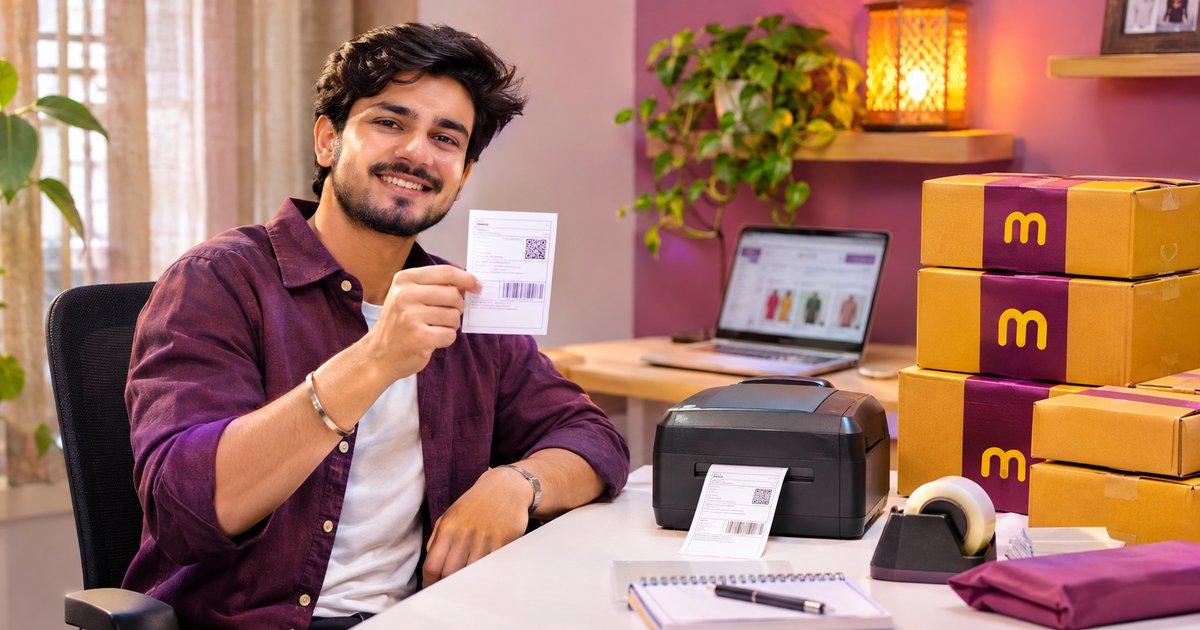
Your Meesho orders are packed, the pickup is booked, and then the label sheet stops you: the supplier panel gives you an A4 PDF with the label and invoice on one page, while your thermal printer wants a 4x6 sticker. Cropping the label out of that PDF is the fix, and it takes under a minute with a free browser tool. This guide walks through the whole flow, from downloading the PDF in the Meesho supplier panel to a clean test print, using the same steps as our free Meesho label crop tool.
Where the Label PDF Comes From
In the Meesho supplier panel, go to Orders → Ready to Ship and download the shipping label PDF for the orders you are dispatching. Keep the original file untouched: you may need it again, and the crop tool never changes it. The download is usually an A4 page with the shipping label and the invoice together, which is exactly why it does not fit a 4x6 thermal printer as-is.
Crop the Label in Your Browser
Open the free SnapSeller Meesho label crop tool and add the PDF: drag it into the upload area or choose it from your device. You can add several PDFs in one run. Click Process PDF and the cropped file is created in your browser and downloads to your device. Two things worth knowing:
- Nothing is uploaded. The processing happens locally in your browser, so the label file and the customer addresses inside it do not go to a server.
- It is free and needs no signup. Open the page and use it. Check one page of the downloaded PDF before printing a full batch.
Pick the Right Layout
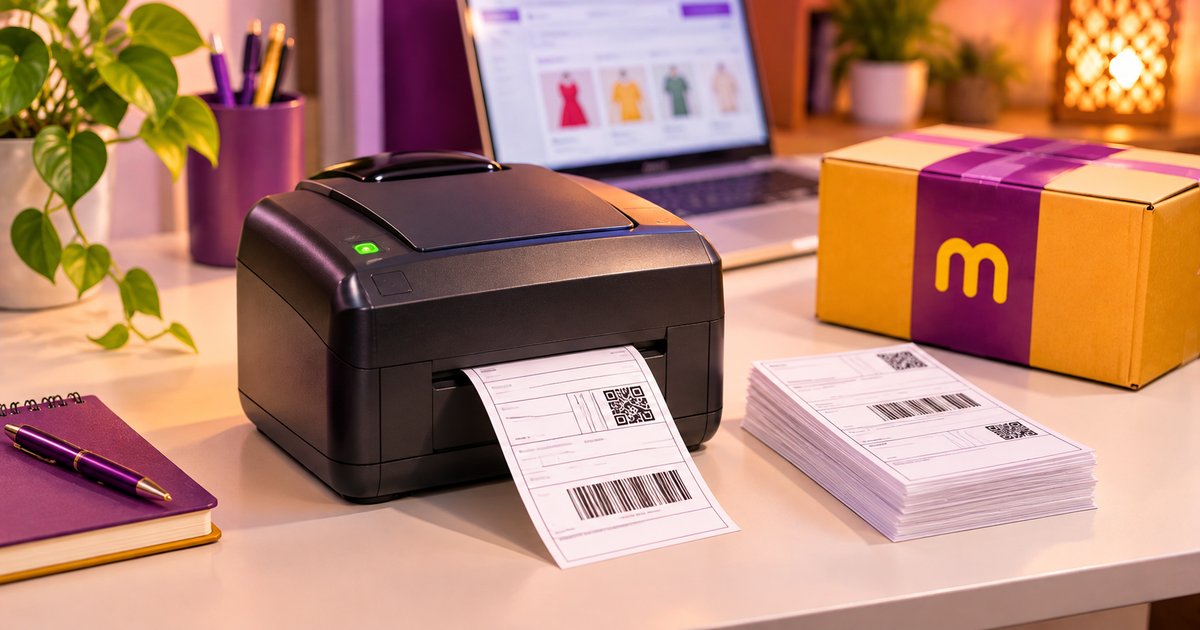
The tool offers four layouts. For a thermal printer, Only Label is the one you want:
| Layout | When to use it | Output |
|---|---|---|
| Only Label | You need the shipping-label pages for packing or label printing. | Label pages only |
| Only Invoice | You need the invoice pages separately. | Invoice pages only |
| No Crop | You want to keep the pages in their original layout. | Original page layout |
| Label + Invoice (No White Space) | You need both sections in a more compact page. | Label and invoice with extra white space reduced |
Sort Before You Print
Two optional sorters save packing time. Sort by SKU Group places matching detected SKUs together, so one product's labels print as a run. Sort by Pickup Partner groups detected courier pages, handy when different pickups leave at different times. The two cannot run together in one run. Multi Orders first is independent and can be enabled with either sorting method.
Printer Settings for 4x6
Cropped PDF in hand, the print dialog decides whether the label comes out clean:
- Paper size: 4 x 6 inch (100 x 150 mm), matching the roll loaded in the printer.
- Scale: 100% or Actual size, with Fit to page turned off. If a test print is cut off, switch to Fit to printable area instead.
- Margins: None, or the smallest option. Margins shrink or shift the label on the sticker.
- Orientation: Portrait to start; if the label prints sideways, switch orientation or turn on auto-rotate.
- Print from: the Chrome PDF viewer or Adobe Reader, both of which expose paper size, scale and margins.
If the barcode looks faint, raise the printer darkness and lower the print speed in the printer preferences. Always print one test label and scan its barcode before the full batch.
When the Print Goes Wrong
Four problems cover nearly every bad print, and each has a quick fix:
- Label prints small or with a white border: Set the scale to 100% (Actual size) and the paper size to 4 x 6 inch, and turn off Fit to page and shrink-to-fit options. A larger paper size such as A4 in the driver also leaves a white border.
- Label is cut in half or prints on two stickers: The paper size in the driver does not match the roll. Choose 4 x 6 inch (100 x 150 mm) and run the printer’s label calibration so the gap sensor learns where one sticker ends.
- Barcode is not scanning: Increase the printer darkness and slow the print speed. Do not resize, screenshot or re-compress the PDF; use the file the tool downloaded, or crop the original again.
- Blank pages between labels: Calibrate the printer so it detects the label gap, and print one label per page. A page size larger than the sticker pushes the next label out as a blank sticker.
More Free Tools for Meesho Sellers
SnapSeller is an independent toolkit for Meesho and Flipkart sellers. These pair well with label cropping:
- Meesho label crop tool. The free browser tool this guide uses: crop, sort and download in one run.
- Meesho shipping charges guide. What each shipment costs and why the weight slab decides the fee.
- Meesho return policy guide. Returns and RTO: what the seller bears and how to cut avoidable returns.
- Flipkart label crop guide. Sell on Flipkart too? The same crop flow for Flipkart labels, in Hinglish.
Browse all free seller tools for current pricing and the free launch access.
Frequently asked questions
How do I crop a Meesho shipping label for a 4x6 printer?
In the Meesho supplier panel go to Orders → Ready to Ship and download the label PDF. Add it to the SnapSeller Meesho label crop tool, select the Only Label layout, choose an optional sort and click Process PDF. Open the downloaded PDF, set your printer to 4 x 6 inch media at 100% scale, and print one test label before the full batch.
Is the SnapSeller Meesho label crop tool free, and does it need a signup?
Yes. The public Meesho label crop tool is free and needs no signup or account. Your PDF is processed in your browser and is not uploaded. This applies to the public label tool and does not promise unlimited processing or cover every other SnapSeller feature or plan.
Are my Meesho label PDFs uploaded to a server?
No. The PDF processing happens locally in your browser, so the label file and the customer-address data inside it are not uploaded to a SnapSeller server. Keep the original file secure and avoid shared devices when it contains sensitive order information.
Can I crop multiple Meesho label PDFs at once?
Yes. You can add multiple supported PDF files and process their pages in one run. Large batches use more device memory and can take longer, so keep the tab open; if the browser struggles, process fewer files per batch.
Can I sort Meesho labels by SKU or pickup partner?
Yes. Sort by SKU Group places matching detected SKUs together, while Sort by Pickup Partner groups detected courier pages. The two options cannot run together in one run. Multi Orders first is independent and can be enabled with either sorting method.
Why does my Meesho label print small, cut off or with a white border?
Usually the printer paper size is not 4 x 6 inch, Fit to page is on, or the printer is not calibrated to the label gap. Set the paper size to 4 x 6 inch (100 x 150 mm), print at 100% or Actual size, set margins to None, calibrate the printer and test one page before printing a batch.